
11/28/2025
The Ultimate Guide to the Google Play Store App: Tips, Troubleshooting, and Expert Advice
Discover expert tips, troubleshooting steps, and essential advice for using the Google Play Store app. Learn how to download apps, fix errors, enable features, and enhance your Android experience.
NightCoders

The Google Play Store app is essential for Android users, offering access to millions of apps, games, books, and digital content. Although most users are familiar with its basic functions, many still have questions about advanced features, payment processing, updates, security settings, and troubleshooting common errors. This comprehensive guide answers the most pressing questions about the Google Play Store app, using research-backed advice and practical steps to ensure you get the best experience possible.
How to Download Paid Apps for Free on Google Play Store
Users often search for ways to access paid apps without charge, but it is important to clarify that downloading paid apps for free from the Google Play Store without proper authorization is against Google’s policies and raises serious legal and ethical concerns. Occasionally, however, legitimate promotional events allow users to get certain paid apps at no cost. For instance, Google occasionally offers Play Store rewards, and developers may run special sales or limited-time giveaways. Reliable tech sites such as Android Authority report that users should watch for “temporarily free” pricing on the Play Store and consider joining app giveaway forums or following developers on social media for legal opportunities to download premium apps for free 1.
Additionally, Google Opinion Rewards is another official way to earn Play Store credit by answering surveys. With accumulated credits, users can then purchase paid apps legally without spending real money. Nightcoders, an Indonesian tech community, regularly highlights these tips and more at https://nightcoders.id.
Best Free Apps to Download from Google Play Store
Android’s vast app ecosystem means users have access to a wealth of free, high-quality apps across many categories. According to Statista, some of the top-rated and most-downloaded free apps include WhatsApp, Instagram, TikTok, Spotify, and Google Chrome 2. Productivity applications like Google Drive, Microsoft Office, and Trello have consistently maintained high ratings because they integrate seamlessly with mobile workflows. Security-conscious users should also consider installing free apps like Bitdefender Antivirus Free and ProtonVPN, both of which are recognized for their reliability and simplicity.
When searching for the best free apps to download, users should carefully read ratings, reviews, and developer credentials. The Google Play Store's “Editor's Choice” and “Trending” sections are useful for discovering quality apps that meet Google’s standards for design and security 3.
Steps to Update Google Play Store App Automatically
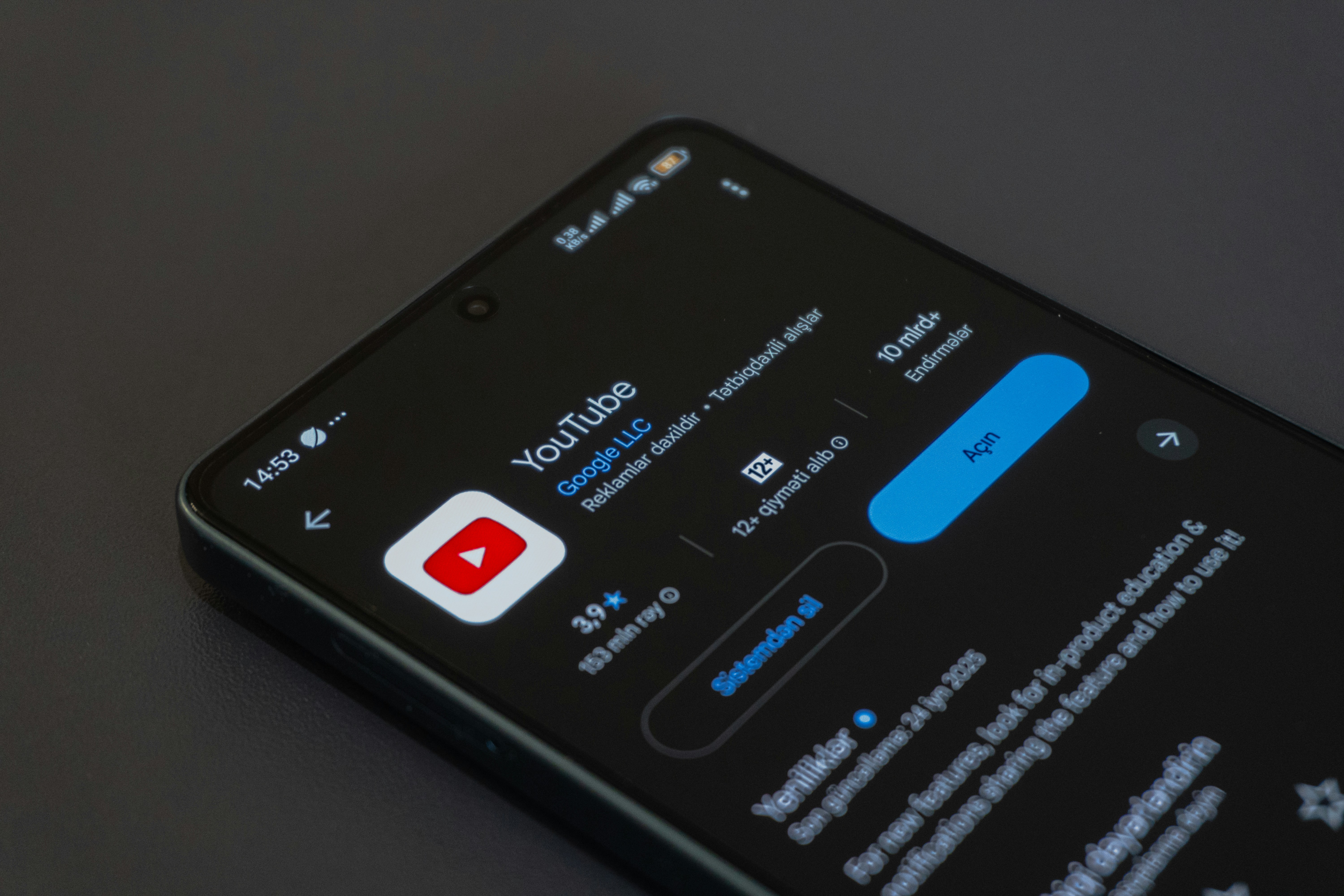
Many users want to know how their Google Play Store app updates itself and whether manual intervention is necessary. By default, the Play Store is designed to update automatically to ensure users always have the latest version and security patches. This process typically happens in the background when your device is connected to Wi-Fi. To further automate app updates, users should navigate to the Play Store settings, tap on ‘Auto-update apps,’ and select the preferred update frequency, such as over Wi-Fi only or using mobile data.
According to Google support, keeping both your Play Store app and other apps updated is vital for security, performance, and accessing new features 4. Users who encounter persistent issues can clear the cache and data or reinstall updates to reset the Play Store.
How to Fix Google Play Store App Not Opening on Android
A common issue many users encounter is the Play Store app not opening or crashing upon launch. According to troubleshooting guides from Android Central, clearing the cache and data for the Google Play Store app often resolves loading problems 5. Users can do this by going to Settings, selecting Apps, locating Google Play Store, and using the ‘Clear Cache’ and ‘Clear Data’ options. Rebooting the device afterward generally enables a fresh start.
If clearing cache does not resolve the problem, it is advisable to ensure the device’s date and time are set correctly, remove unused accounts, or check for software updates. Issues may also originate from network connectivity problems or Google Play Services becoming corrupt, which requires a force stop and cache clear for Google Play Services as well.
How to Clear Cache for Google Play Store App
Over time, the Play Store app accumulates temporary files that may impact performance or cause glitches. Clearing the cache improves responsiveness and resolves errors such as downloads being stuck or incomplete updates. The process is straightforward: users should open their device’s Settings, choose ‘Apps & notifications,’ tap on ‘See all apps,’ locate Google Play Store, and then tap ‘Storage & cache’ where the ‘Clear Cache’ button can be found.
Researchers at Lifewire recommend clearing cache regularly, especially if the Play Store app displays frequent error codes or loading delays 6. This method is safe and does not delete your personal data or app configurations.
How to Refund an App Purchase on Google Play Store
If you purchase an app or make an in-app purchase by accident, Google offers a straightforward but time-limited refund process. According to Google’s official refund policy, users can request a refund for most apps and games within 48 hours of purchase, directly from the Play Store app 7. Navigate to ‘Payment & subscriptions,’ select ‘Budget & history,’ find the recent purchase, and choose ‘Request a refund.’
If more than 48 hours have passed, you must contact the app developer for a refund, although success ultimately depends on their policies. Refund requests for subscriptions and in-app purchases have different criteria, so read the specific Play Store support page for current guidelines.
How to Subscribe to Premium Apps on Google Play Store
Premium apps often use subscription models to unlock advanced features or ad-free experiences. Subscribing is simple: after locating your desired app in the Play Store, tap the ‘Subscribe’ button visible within the app page, then choose the preferred plan. You will be prompted to confirm your Google account and select a payment method.
Industry analyses from App Annie confirm that subscription-based monetization is rapidly growing, with categories like streaming, training, and security seeing substantial user investment 8. Users can manage, pause, or cancel subscriptions anytime through the ‘Payments & subscriptions’ section in the Play Store app, ensuring flexible control.
Google Play Store Parental Control Settings for Apps
Parents often want to restrict what content children can access on their devices. The Play Store includes robust parental controls that allow adults to block inappropriate apps, games, or media based on age ratings. To set them up, users should visit Settings within the Play Store, then tap ‘Family’ and ‘Parental controls,’ where PIN-protected restrictions can be set for apps, games, movies, and more.
According to Common Sense Media, employing the Play Store's parental controls reduces exposure to inappropriate content and accidental in-app purchases 9. Parents should periodically review these settings to ensure they remain suitable as their child grows or device usage changes.
How to Check App Permissions on Google Play Store
App permissions control what data and features an installed app can access, such as location, contacts, or storage. Users can review app permissions before downloading by scrolling to the ‘Permissions’ section on each app’s Play Store page. After installation, users can further manage permissions through system settings by navigating to ‘Apps,’ selecting the specific app, and tapping ‘Permissions.’
As ZDNet points out, reviewing permissions helps users avoid privacy risks and reduces exposure to malicious apps that request unnecessary access 10. Always read the developer’s explanation of why each permission is needed before granting access.
Tips to Improve Google Play Store App Download Speed
Fast download speeds are crucial for a smooth Play Store experience, especially when installing large games or multiple updates. Slow downloads can usually be improved by switching to a faster Wi-Fi network, ensuring adequate storage space on your device, and clearing the Play Store cache. Disabling background data usage for other apps also helps conserve bandwidth for active downloads.
Experts at Digital Trends recommend restarting your router or device if speeds remain slow, checking that no data limits are enabled, and avoiding downloads during peak internet usage hours 11. Sometimes, using a VPN or switching to a different Google account can bypass regional server congestion.
How to Delete Apps Purchased from Google Play Store
If you want to remove an app you previously bought, long-press the app’s icon on the home screen or app drawer and choose ‘Uninstall.’ Purchased apps remain in your account library, and if you ever want to reinstall them later, you will not need to pay again. Within the Google Play Store, you can go to ‘My apps & games,’ select the ‘Installed’ or ‘Library’ tab, and uninstall directly from there.
For more permanent removal from your purchase history, Google does not currently allow the deletion of past app purchases, but you can hide specific entries from your Play Store library for a cleaner interface.
How to Enable Dark Mode in Google Play Store App
Users seeking to reduce eye strain or save battery life can enable dark mode in the Play Store by accessing the in-app settings. Tap the menu icon, go to ‘Settings,’ then find the ‘Theme’ option, where you can select ‘Dark’ or set it to follow the system default.
According to Android Police, enabling dark mode helps conserve battery on OLED screens and provides a more comfortable visual experience in low-light environments 12. This feature is available on modern Android devices running Android 10 or above.
How to Troubleshoot Google Play Store App Error 403
The notorious “Error 403” on the Play Store typically occurs when a user tries to download an app using different Google accounts on the same device or due to conflicting Play Store settings. The quickest solution is to remove all Google accounts from the device, clear the Play Store cache and data, restart the phone, and log back in with your main Google account.
As explained by Android Authority, users may also need to deselect any proxy or VPN settings temporarily, which can interfere with Play Store traffic 13. Making sure your device’s date and time are automatic further reduces risk of transactional errors.
How to Find Trending Apps on Google Play Store
Discovering which apps are trending is straightforward due to curated categories and charts within the Play Store. Open the app, scroll to the ‘Top charts’ or 'For you' tabs, and explore under ‘Top free,’ ‘Top grossing,’ or ‘Trending.’ These categories refresh periodically, highlighting new releases and popular downloads.
According to Google’s official Play Store help desk, algorithms rank trending apps based on downloads, user ratings, engagement, and overall momentum 14. For more curated picks, users can check “Editor’s Choice” or subscribe to regular app recommendation newsletters.
How to Contact Google Play Store Support for App Issues
If you experience a persistent problem with an app or have a payment-related issue, contacting Google Play Store support is the best approach. Open the Play Store, tap your profile picture, go to ‘Help & feedback,’ and search for your issue or use the contact options provided. For payment disputes or in-app purchase questions, visiting the Google Play Help Center online provides the most direct contact pathways, including live chat for urgent concerns.
Consumer Reports notes that Google’s support is generally responsive within business hours, but for issues external to Play Store policies, contacting the app developer remains necessary 15.
How to Switch Accounts in Google Play Store App
Switching between multiple Google accounts is a feature many users rely on for personal or work purposes. Tap your profile picture in the Play Store’s upper-right corner and simply select the account you want to use. Once switched, all downloads, recommendations, and billing details will align with the selected profile.
Managing multiple accounts also ensures separation between work and personal app libraries, subscriptions, and purchases. Make sure you regularly sync your accounts to prevent errors in app history.
How to Restrict In-App Purchases on Google Play Store
Unauthorized in-app purchases can lead to unexpected charges. To prevent this, parents or account holders can enforce additional authentication for purchases by visiting Play Store settings, tapping ‘Authentication,’ and selecting ‘Require authentication for purchases.’ Here, you can specify that every transaction or only specific categories need password entry.
TechRadar recommends this setting as essential for families or shared devices 16. In combination with Family Link and parental controls, purchase authentication helps manage digital spending.
How to Restore Apps from Google Play Store Backup
Restoring apps from a previous backup is particularly valuable after a device reset or when setting up a new phone. During initial device setup, Android automatically prompts users to restore apps and associated settings from a selected Google account backup. Alternatively, you can reinstall past apps by visiting the Play Store’s ‘Library’ tab and manually choosing which ones to download again.
According to PCMag, prior app purchases and downloads remain linked to your Google account, ensuring you never lose paid content or app data as long as restore options are enabled 17.
How to Install Apps from Google Play Store on PC
While the Play Store app itself is not natively available for Windows or Mac, users can install Android apps on their PC by using official emulators such as BlueStacks or through Chrome OS with Play Store integration. Another option is accessing https://play.google.com via any browser, selecting apps, and sending installation instructions to any of your Android devices linked to your Google account.
Digital Trends highlights that Windows 11 will soon support certain Android apps through the Amazon Appstore, expanding cross-platform access even further 18.
How to Recover Deleted Apps from Google Play Store Purchase History
To recover an app you accidentally deleted, revisit the Play Store app, tap your profile, and go to ‘My apps & games.’ In the ‘Library’ tab, previously installed apps are listed, ready for reinstallation without repurchasing. Purchase history ensures your paid apps are preserved for easy access.
Google’s help documentation assures users that all digital purchases are safely stored in your account, allowing you to recover or reinstall content at any time 7.
# Quick Steps: Clear the Google Play Store Cache on Android
Settings > Apps > Google Play Store > Storage & cache > Clear Cache
Frequently Asked Questions
1. Can I get a refund for an app after the 48-hour window?
If more than 48 hours have passed, you must contact the app’s developer for a refund. Google’s reimbursement window is strictly limited, but many developers honor refund requests for eligible cases.
2. Is it safe to download apps outside of the Google Play Store?
Downloading APKs from unofficial sources increases security and privacy risks. Always use the official Play Store or reputable marketplaces to avoid malware.
3. How do I know if an app is safe or contains malware?
Before installing any app, check for a large number of genuine reviews, a well-known developer, and the “Play Protect” badge indicating a Google-verified app. Also, read detailed app permissions.
4. Why can't I enable dark mode in my Google Play Store app?
Dark mode requires Android 10 or later and the most updated Play Store app. If the option is missing, update your OS and Play Store or check device compatibility.
5. What is the best way to keep my Play Store app secure?
Always keep your device and Play Store app updated, review app permissions regularly, use strong authentication for purchases, and never share your Google account credentials. Enable Play Protect for real-time security checks.
References
[1] https://www.androidauthority.com/
[2] https://www.statista.com/
[3] https://support.google.com/googleplay/answer/1153452?hl=en
[4] https://support.google.com/googleplay/answer/113412?hl=en
[5] https://www.androidcentral.com/common-google-play-store-problems-and-how-fix-them
[6] https://www.lifewire.com/fix-play-store-not-working-4173854
[7] https://support.google.com/googleplay/answer/2479637?hl=en
[8] https://www.appannie.com/en/insights/market-data/app-monetization-models/
[9] https://www.commonsensemedia.org/
[10] https://www.zdnet.com/article/android-permissions-explained-how-to-protect-your-privacy/
[11] https://www.digitaltrends.com/mobile/how-to-make-the-google-play-store-faster/
[12] https://www.androidpolice.com/how-to-enable-dark-mode-google-play/
[13] https://www.androidauthority.com/google-play-store-error-403-fixes-285189/
[14] https://support.google.com/googleplay/answer/1075738?hl=en
[15] https://www.consumerreports.org/
[16] https://www.techradar.com/how-to/how-to-prevent-accidental-google-play-purchases
[17] https://www.pcmag.com/how-to/how-to-transfer-apps-data-to-a-new-android-phone
[18] https://www.digitaltrends.com/computing/how-to-run-android-apps-on-windows/
For more articles on Android tech, visit Nightcoders.